Pay Runs
What is a Pay Run?
Unlike most payroll systems – where you generally have a "payroll run", which finalises all payslips in the current period and moves everything over to the next period – on SimplePay, a pay run is merely a grouping of payslips.
The finalisation of your payroll data actually happens at the payslip level. You could, in theory, use the system without ever creating pay runs, finalising each payslip individually instead, but pay runs are a very convenient concept and allow for certain additional reports to be generated.
The advantage of SimplePay's approach is that issues with one employee, for example waiting for a timesheet, do not have to hold up processing for the other employees. You can create a pay run that includes all employees except the one with issues and then create a second one later for the individual employee.
Bulk Finalise Payslips
Pay runs allow you to finalise your payslips in bulk instead of doing them individually. For more information, see the Bulk Finalise and Review Payslips help page.
Create a Pay Run
If you have done payslips for several periods at once, there will be more than one pay run, and you will need to click the link showing the additional runs (for example, Show 3 more) to see them all. We recommend creating a pay run at the end of each period to finish the payroll process.
Once you have finalised your payslips, either individually, or in bulk as described above, click the Create Pay Run link for that period. As mentioned above, this process has no impact on the data or finalisation of payslips; it simply groups them and allows you to view certain reports and perform certain actions.
You'll see a pop-up to confirm the pay run's creation. Click Create to continue, or Cancel to close the pop-up without creating the run.
Once the pay run has been created, its details open in a pop-up. All of the actions and reports covered in the rest of this help page are available from within this pop-up. Click outside the pop-up or the Close button to close it. The pay run itself remains visible as usual, further down the Pay Runs screen – closing the pop-up doesn't leave you a way to reopen it from there.
Release Payslips to Self-Service
SimplePay allows you to automatically email your employees' payslips to them to access electronically. If you have this set up, creating a pay run will enable you to release the payslips to self-service – the option is selected by default, and your employees will receive emails once you click Create.
If you would like to create the pay run and release the payslips at a later stage, untick the Automatically release payslips to Self-Service option before clicking Create.
To release them at a later stage:
- Go to Pay Runs.
- Click the drop-down arrow next to the pay run date.
- Click Self-Service Release.
- Click Release.
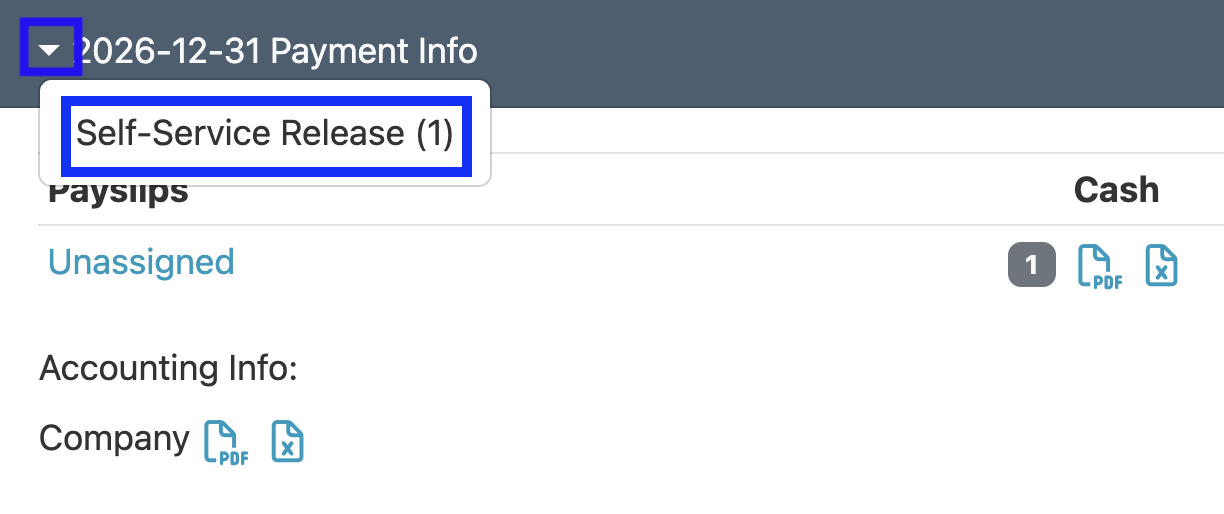
For more information on setting up and using this feature, see the Self-Service Admin and Issuing Payslips help pages.
Reports
Once you have created the pay run, you will be able to download the following reports:
- Single PDF containing all payslips for the run
- Accounting report
- Summary of Nett Pay values
- 3rd party payment summary
Additional reports containing employees' details and breakdowns of their payslip items, for example, can be downloaded from the Reports tab. For more information, see the Reports help page.
Accounting Info
Once you have created a pay run, you can download an accounting report in either PDF or Excel format. This contains a summary of the various expense and liability amounts relevant to the pay run and can be used to capture the information in your accounting records.
If you are making use of our accounting system integration feature, you will also be able to post this information directly to the relevant accounts. For more information, see the Accounting help page.
Payment Info
You will also be able to view a summary of the Nett Pay amounts per employee in PDF or Excel format, grouped by payment method. Where employees or beneficiaries are paid by electronic bank transfer, you will also be able to download bulk payment files for each, which you can then upload to your online banking platform.
Delete a Pay Run
In certain instances, you may need to delete a pay run; for instance, you might need to unfinalise payslips, but you cannot do so because they are part of a pay run. You can delete a pay run as follows:
- Navigate to the relevant pay run.
- Click the drop-down arrow next to the date of the pay run you want to delete.
- Click Delete.
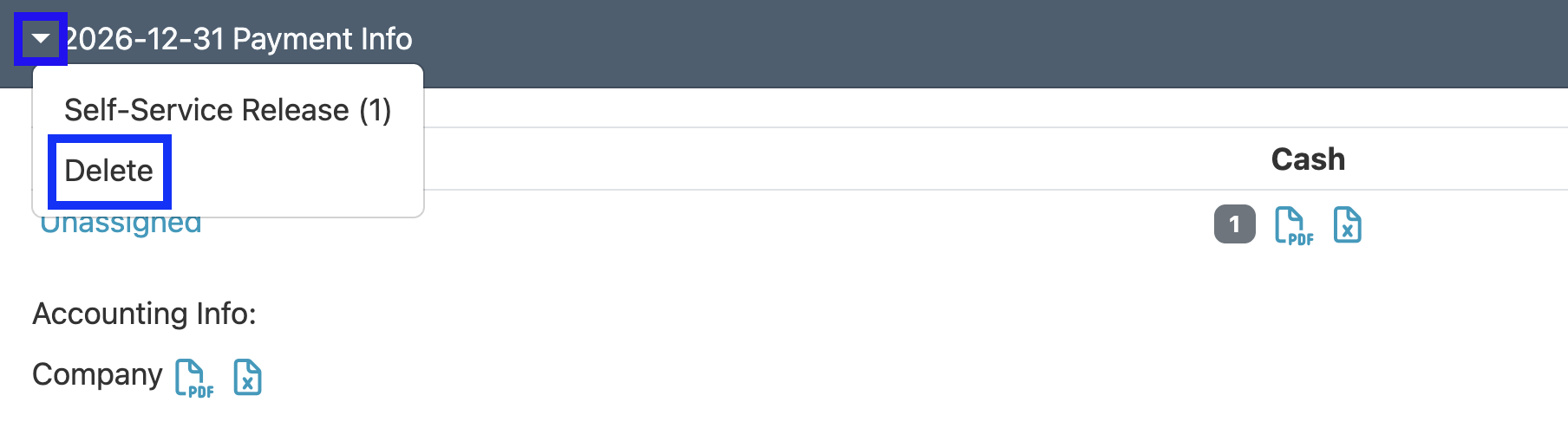
Alternatively, click Delete from within the pay run's pop-up view – either way, you'll be asked to confirm the deletion before it goes ahead.
Deleting a pay run does not unfinalise payslips or alter any of the amounts they contain; it simply ungroups them, allowing you to make changes if necessary.
Deleting a pay run with posted accounting information
If you have posted accounting information, this post will be reversed when the pay run is deleted. If you are using Accounting Splits and have multiple posts per pay run, each one will need to be deleted by clicking next to it before the pay run can be deleted.
Bulk Undo Finalise of Payslips
As previously mentioned, pay runs do not imply finalisation of payslips, so when you delete a pay run, the payslips it contained are still finalised. However, after deleting the pay run, the finalised payslips will appear again under Pending Pay Runs. You can unfinalise them in bulk by clicking Unfinalise.
When not to use bulk Unfinalise
This option should be used only if you are sure that you need to make changes to all of the payslips in the run. If you are at all unsure, or you know you only need to edit one / a few payslips, please DO NOT use this option – you should rather go to each employee's profile and click Undo Finalise on the relevant payslip.
Once you have made the necessary changes, you can follow the process(es) outlined in the sections above.